-

-
-
Product

Solutions
One app, all things legal

Compare
-
-
-

 Gmail
Gmail  Microsoft 365
  Wisetime
  Dropbox
  Zapier
  Quickbooks
  vs CosmoLex
  vs PracticePanther
  vs AbacusNext
  vs Caret Legal
  vs Clio
  vs MyCase
  vs Smokeball
  vs Filevine


Introducing Matter Access Center: Manage Matter Participants and Access in One Place
23rd October 2026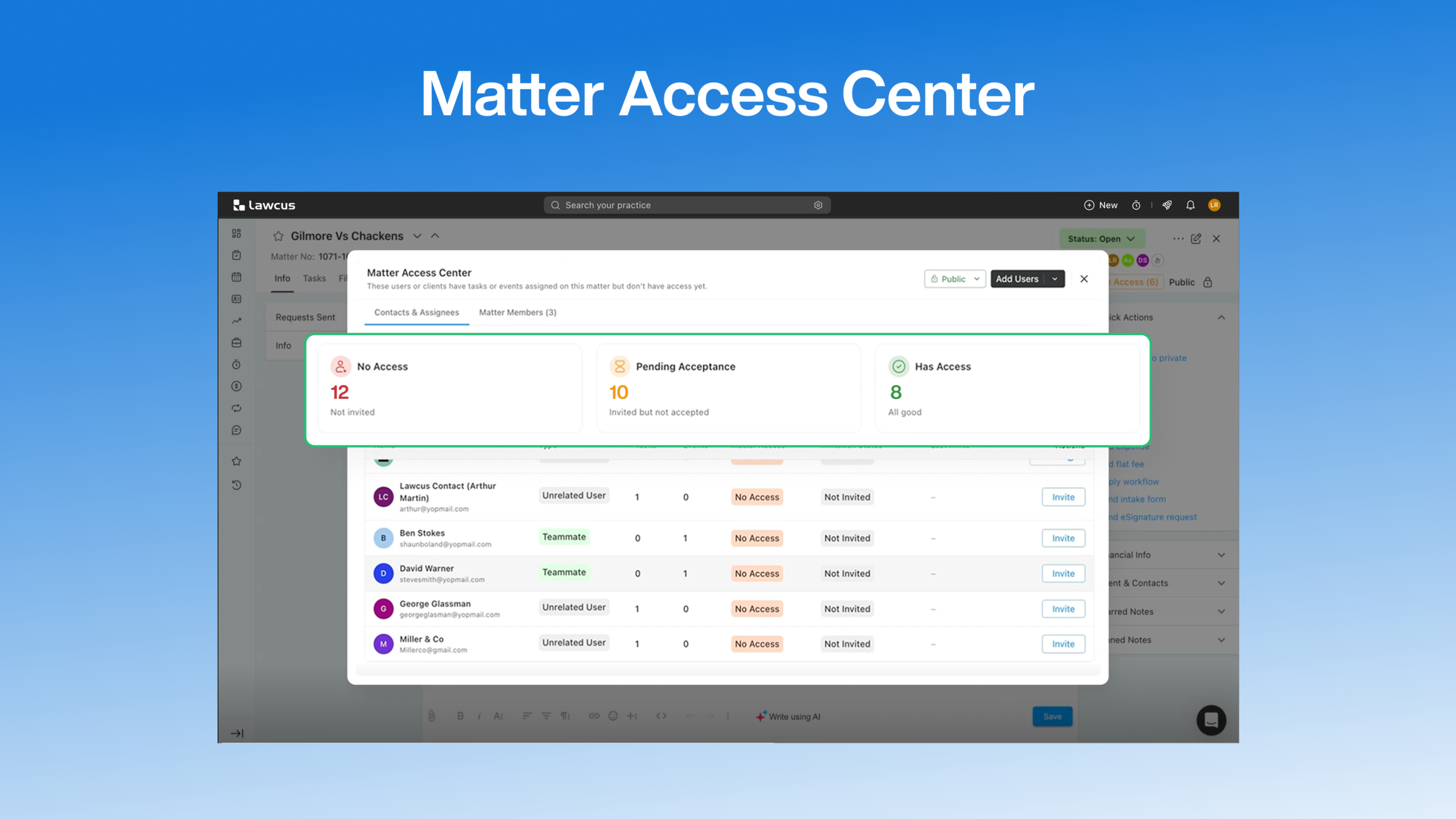
A client has tasks waiting on a matter, but has not accepted their invitation. A related contact has already joined the portal, but the matter has not been shared with them. Your team needs to know which step is missing before following up.
The new Matter Access Center brings those details together inside each matter. Review the people involved, see their access and invitation status, and take the next action from the same view.
One place to review matter participation
Open a matter and select Manage Access to see its Matter Access Center. Two tabs separate external participation from your internal team:
- Contacts & Assignees lists clients, related contacts, and contacts associated with the matter’s tasks or events.
- Matter Members shows the internal firm members associated with that matter.
Alongside your existing matter management tools, this gives your team a dedicated place to review who is involved and check their access.
See who still needs access
The Contacts & Assignees tab opens with three summary cards:
- No Access: Participants who still need attention before they can access the matter.
- Pending Acceptance: Participants with invitations they have not yet accepted.
- Has Access: Participants who already have access.
The participant table adds the context behind those summaries. You can review each person’s name and email, relationship to the matter, associated task and event counts, matter access, invitation status, and most recent invitation information when available.
Invitation status and matter access are separate details. A contact may have accepted an invitation and still need the current matter shared with them. Seeing both statuses helps your team identify the appropriate next step.
Invite, share, or revoke from the participant’s row
Available actions appear beside each participant, based on their current status.
Invite a contact who has not joined
When a participant has no matter access and has not been invited, use Invite and complete the invitation process. The contact needs an email address on their record; without one, the Invite button is disabled.
Share a matter with an existing participant
If the participant has already accepted an invitation but has no access to this matter, select Share. Their matter access status then changes to Shared.
For more background on sharing matters, see how to share a matter with a client in Lawcus.
Follow up on a pending invitation
When someone has been invited but has not accepted, review their pending status and use the available invitation action to resend the invitation.
Remove access when it is no longer needed
For a participant whose matter access is Shared, use Revoke and confirm if prompted. This gives matter managers a direct way to remove access as participation changes.
Prepare tasks and events before inviting contacts
Your team can now prepare work without waiting for a client or related contact to accept a portal invitation.
Create and assign tasks, associate contacts with matter-related events, and organize the work in advance. You can also use Lawcus workflows to automate client-related tasks, then invite participants when they are ready to access the matter.
For example, your team can prepare a client’s document collection tasks during matter setup. The client can appear in Contacts & Assignees with those tasks associated with them, while their access status shows that an invitation is still needed.
Assigning a task or associating a contact with an event does not automatically grant matter access. Review the participant’s status in the Matter Access Center and use the appropriate invitation or sharing action.
This keeps task preparation and access decisions visible as separate steps.
Open Matter Access Center
To review a matter’s participants:
- Go to Matters.
- Open the relevant matter.
- Select Manage Access.
- Review Contacts & Assignees or Matter Members.
For detailed instructions and an explanation of each status and action, read the Matter Access Center support guide.
Categories
Automation BlogsBilling & Accounting BlogsGeneral PracticeMarketing BlogsNews & UpdatesPractice Management BlogsRecent Posts
Introducing Matter Access Center: Manage Matter Participants and Access in One Place

Client Portal Communication for Law Firms
How to Choose Legal Billing Software for a Law Firm
Introducing Billing and Task Insights in Lawcus

Law Firm KPIs: The Metrics Every Managing Partner Should Track
Practice Management
Automation
Client Intake & CRM
Billing & Accounting
Practice Area
Compare
Resources
Lawcus Inc.
4445 Eastgate Mall, Suite 200,
San Diego, CA 92121


